Penny Keys and Service Troubleshooting
If your Penny key is not working when you swipe it at a service, there are several reasons why it might decline or fail.
This page covers the most common problems and how to solve them.
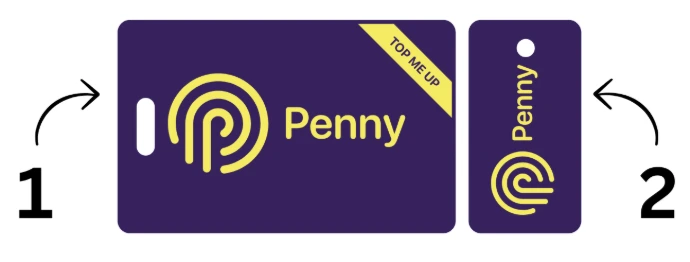
Ensure your Penny Key is registered!
If you're a first time user, this is definitely the first thing to check.
Penny keys can be snapped into two unique parts. For both parts to work, each part must be registered separately in the app.
Open your Penny app and scroll down on the dashboard to the section about Penny Keys, or find "Penny Keys" on the menu.
- Ensure both parts are registered
- Check for typos (especially common mistakes like "B" vs "8", "0" vs "D")
- Delete any unwanted keys using the trash can icon button
Check your recent app activity
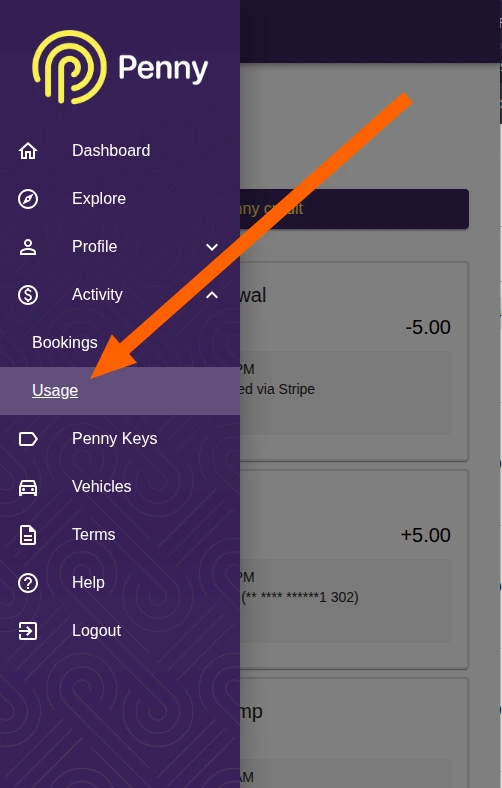
If your Penny key is definitely registered, check the Activity -- Usage section in your Penny app menu.
This shows all recent transactions and their outcomes. If you can see a red "Declined", it will show the reason for the decline. Often the reason is insufficent Penny Credit, but may also be relating to requiring a current booking or other conditions.
If it's a gate, you will need a current booking. Note the earliest check in and check out time in the booking details in your app.

Transaction shows as "Accepted" but the service didn't start
If you can see the accepted transaction in your Penny app, but the service did not start, there may be a problem with that service.
Use the "Report a problem" link in your Penny app usage page to tell us about it and request a refund, or call our helpdesk so we can investigate.